eForce Inverter Integration Guide (Sol-Ark)
Important Notice
This Quick Guide does not exempt the installer or User from reading each product manual. Failure to do so may risk damaging both Fortress Power equipment and other manufacturers and void warranty.
Connection Diagrams
Connection Overview
Parallel Connection Overview
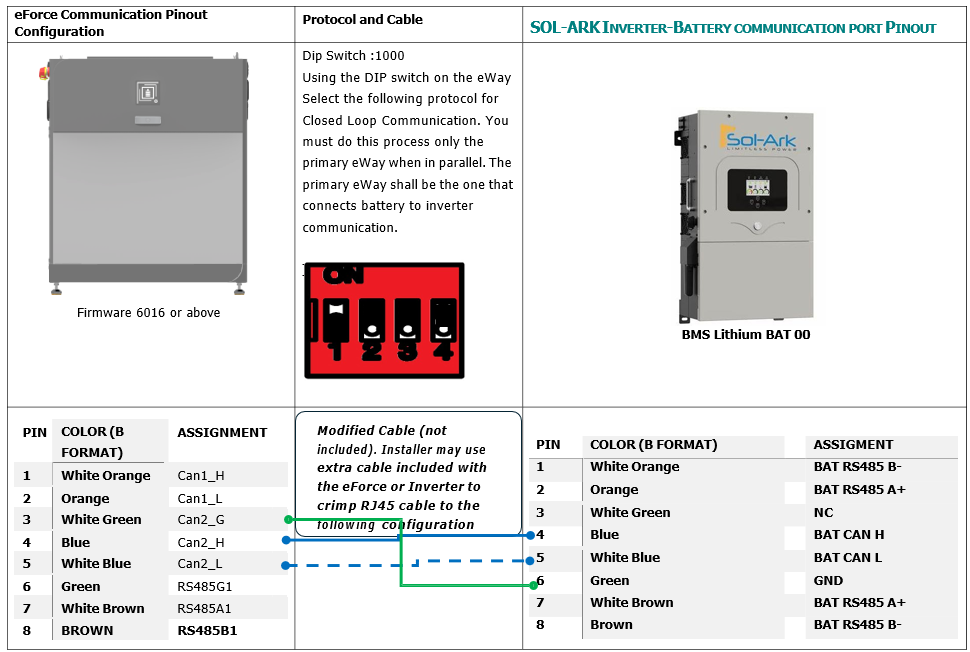
Closed loop and Pinout Definitions
To ensure Closed Loop communication, please follow the process below. If making a communication cable, refer to the pin out diagram for an RJ45 cable below. Type B format ethernet cable may also be used.
Important Notice
This Quick Guide does not exempt the installer or User from reading each product manual. Failure to do so may risk damaging both Fortress Power equipment and other manufacturers and void warranty.
Connection Diagrams
Connection Overview
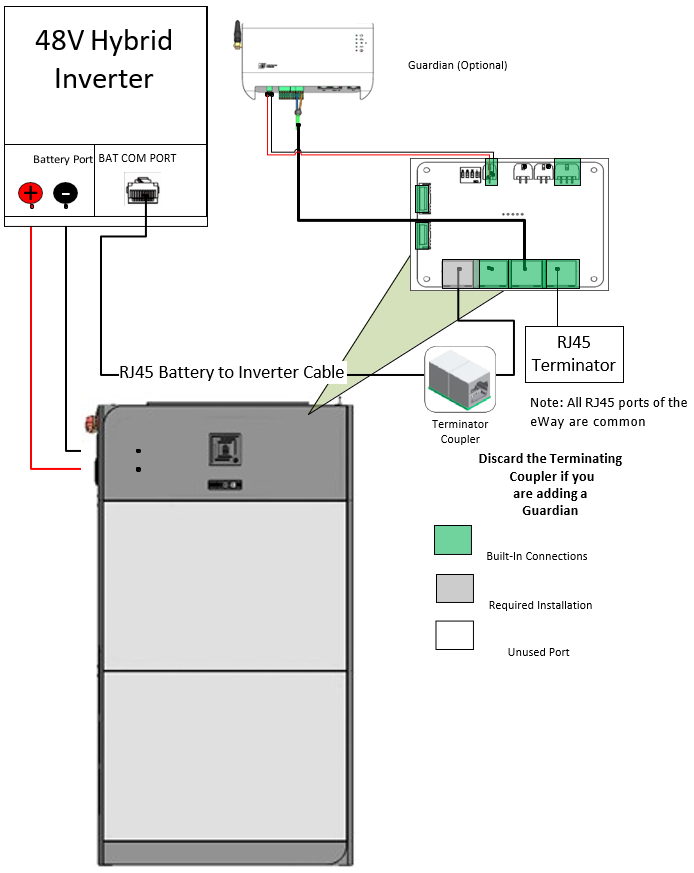
Parallel Connection Overview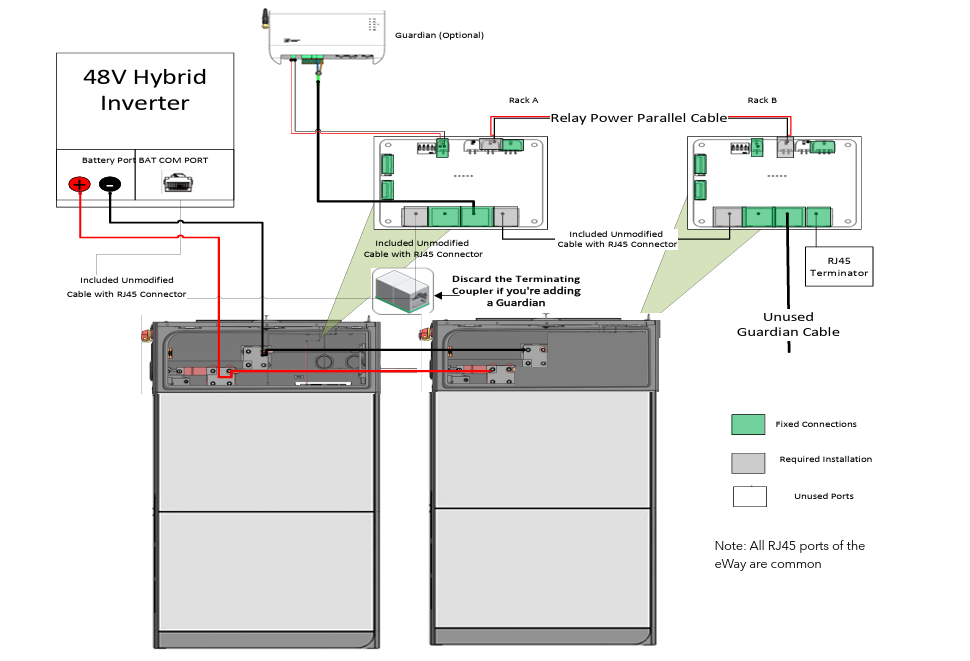
This Quick Guide does not exempt the installer or User from reading each product manual. Failure to do so may risk damaging both Fortress Power equipment and other manufacturers and void warranty.
Parallel Connection Overview
Closed loop and Pinout Definitions
To ensure Closed Loop communication, please follow the process below. If making a communication cable, refer to the pin out diagram for an RJ45 cable below. Type B format ethernet cable may also be used.
Commissioning
1. Turn on the Inverter Battery Breaker on the Inverter
2. Turn ON the Disconnect on the eWay. For paralleled battery systems, only turn on the Primary Battery
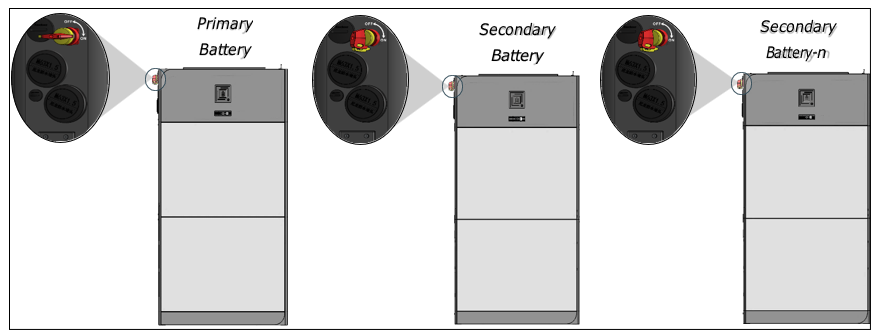
1. Turn on the Inverter Battery Breaker on the Inverter
2. Turn ON the Disconnect on the eWay. For paralleled battery systems, only turn on the Primary Battery
Programming the Inverter
Sol-Ark:
Share Sol-Ark Monitoring w/Fortress
Set up Wi-Fi with Sol-Ark Inverter using Sol-Ark’s My Sol-Ark App and have your site name and Wi-Fi dongle serial number handy to register the system online with Sol-Ark. After registering, use a laptop to log into MySolArk via a web browser at http://mysolark.com
Note: For certain circumstances, temporarily use the batteries in open-loop communication mode, please follow the following link for open-loop settings:
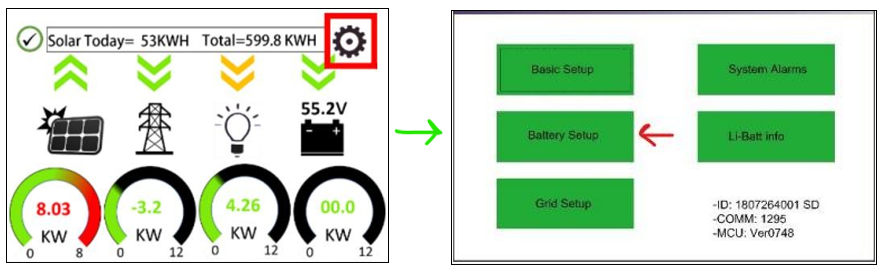
1. To program the inverter using the Sol-Ark inverter screen, go to battery setup menu:
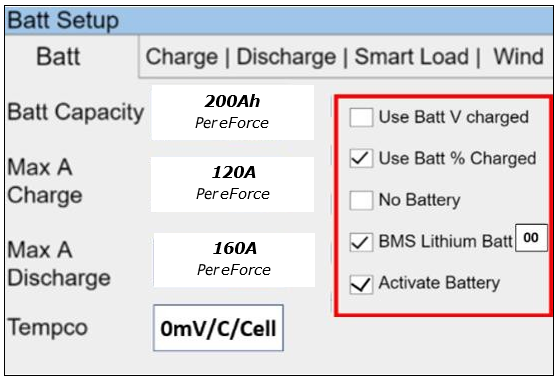
2. Program the 'Batt' tab first. Enter the settings as shown below and tap on 'OK' in the bottom of the menu afterwards
Closed Loop Settings:
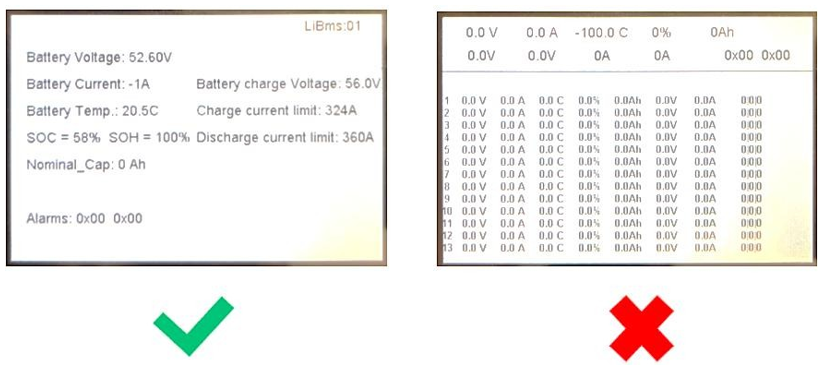
Confirm closed loop communication was established by going to the Home screen and selecting Li-BATT INFO
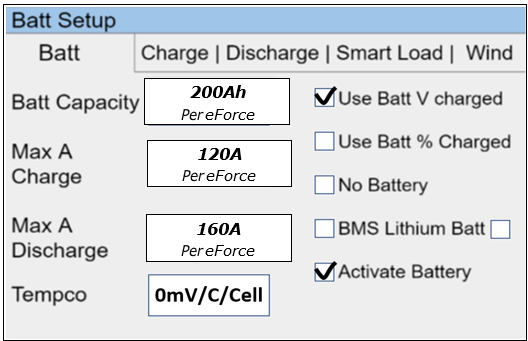
 Open Loop Settings:
Note:
a) If closed loop communication is set up correctly, enabling 'BMS Lithium Batt 00' will adjust some values automatically. In this tab, those would be 'Batt Capacity' and 'Tempco'.b) If the total charge/discharge current capacity of the batteries exceeds the inverter's capabilities, use the maximum current settings of the inverter.For example, if you have four eForce batteries and one Sol-Ark 12K inverter, based on the size of the battery bank, 'Max A Charge' and ‘Max A discharge' should be 240A each. But Sol-Ark 12K can only carry 185A DC going to or coming from the battery. So, in this case, both 'Max A Charge' and 'Max A Discharge' would be set to 185A.c) If recovering a deeply discharged battery, adjust the above charge amps to 10A.
3. Next, program the 'Charge' tab in the 'Battery Setup' menu:
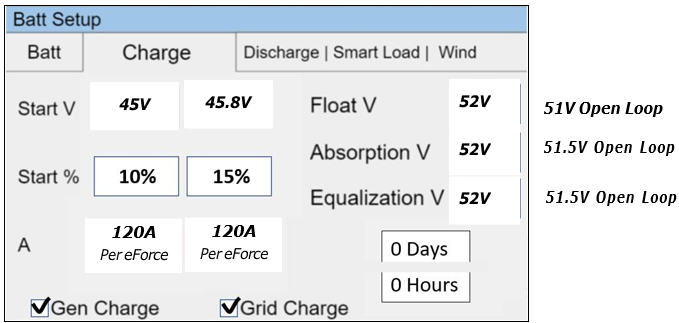
Note:
a) The settings shown in the latter screenshot are the most conventional ones, hence, adjustments may be required (please see the table below).The approach described in the note "2b" applies while programing this tab as well. Additionally, current set point (A) must not exceed generators' capability.
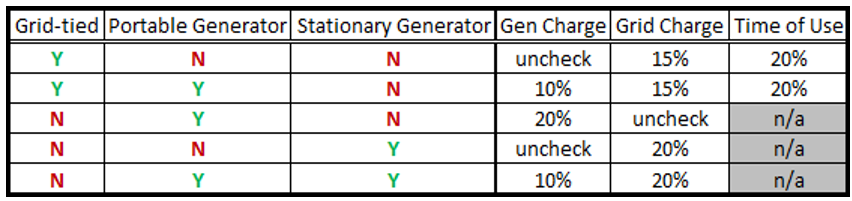 b) Larger generators are commonly tied into the grid side of the inverter rather than the dedicated generator input. Make check-marks and current adjustments accordingly. This fact was kept in mind while creating the last two rows of the table above.c) Fortress batteries may be discharged to its full rated capacity without voiding the warranty, but for best overall experience and battery life, limit the discharge to 80% except for very rare occasions. Here is a list of our suggested triggers:d) It is acceptable to raise the grid or generator start triggers to increase the reserve capacity of the system.
4. Program the Discharge tab:
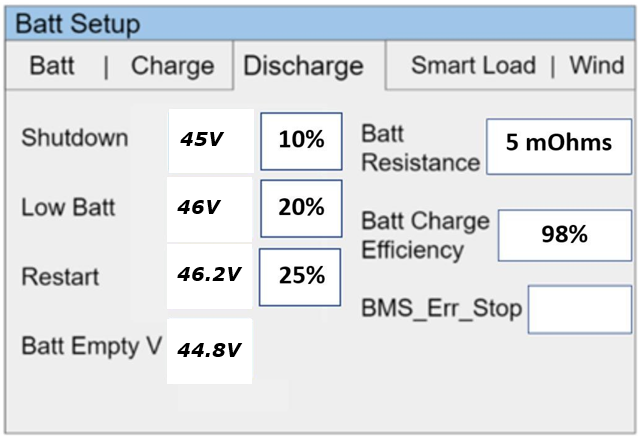
Note:
a) At 'Shutdown' state of charge (battery bank charge percentage), inverter prevents battery from powering the loads. The battery(s) will renew/continue providing power to the loads when the battery bank is recharged to 'Restart' state of charge. 'Shutdown' and 'Restart' state of charge set-points can be increased to increase the "reserve capacity" of the system, but that will cause less battery charge usage. The correct shutdown level is specific to the project site.
b) Low battery is an alarm also specific to the project site, integrated with the Sol-Ark monitoring app. We suggest a 20% state of charge as a low battery alarm level. But it is a good idea to increase it if the 'Shutdown' and 'Restart' set- points are increased.c) The battery empty voltage should not be lower than 44.8V. The last statement from the previous note applies to the 'Batt Empty V'. Usually this set-point does not exceed 45.5V.
Grid Setup / Time-of-UseTime-of-use settings are specific to each end user but also important to having system behavior meeting customer expectations. system to behave as the end user wants it to behave. There are a few important things to know when programming Sol-Ark's time-of-use settings:1) Checking the "charge" column boxes will force a grid charge to that battery.2) Leaving the "charge" column boxes unchecked will act as a low battery cut-off.3) Enabling "grid-sell" will allow the battery to sell back to the grid when it is otherwise 100% full.4) Solar will charge the battery to 100% if there is enough sunlight available and all the loads are otherwise met.5) Additional settings worth exploring in the Grid Setup Menu are the frequency ranges and grid profile settings useful for generator compatibility.Back-up Only Customers:Batteries work better and last longer if they are used, rather than staying 100% full. Our recommendation is to allow the battery to drop to 70% during the early morning hours and then have it go to 100% during the day. You do not need to enable a grid-charge for this functionality. You may want to increase the grid start % or voltage in the battery setup menu. Time-of-use Customers:1) To maintain solar tax credit compliance, you will want to prioritize battery charging in the hours before the time-of- use period so that the battery is 100% going into the time frame.2) You may also want to enable a grid charge the hour before the time-of-use period to ensure the battery reaches 100%3) You may not want to discharge the battery too aggressively. Sticking to no more than 9kW per eVault or 3.3kW per eFlex Max is optimal for maximizing battery life under time-of-use grid sell-back. Likewise, selling back at less than the full rated value of the inverter is healthy for inverter life. So for example, if you can identify that the battery and inverter will be fully utilized over the time of use rate period by discharging at 5kW rate instead of the full rated capacity of the inverter, it will extend battery life.4) That said, the mantra is "use it or lose it" - it is more economically advantageous for the end user to use the battery when it is financially advantageous to do so, rather than to keep the battery at 100% always.
Bad Utility Buyback Rates aka "no net-metering" aka "bad net-metering":Allow the battery to discharge to a 20% state-of-charge over night, so that it can absorb as much solar power as possible during the day rather than having that energy sold back to the grid. Staggering the step down percentages throughout the night so that the battery so that the battery hits 20% right in the early morning will mitigate the risk of power outage between sun up and sun down. Maintain the final 20% time-of-use step with a grid charge to make sure the battery does not go below 20% (which would trigger a full grid recharge at 15% per prior steps). During the day, it does not matter if you prioritize the grid or the battery first when recharging with solar power.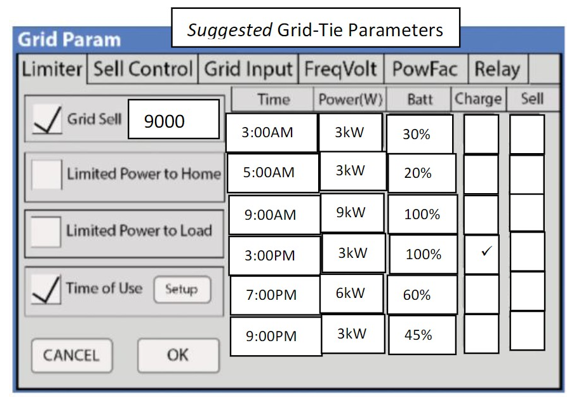
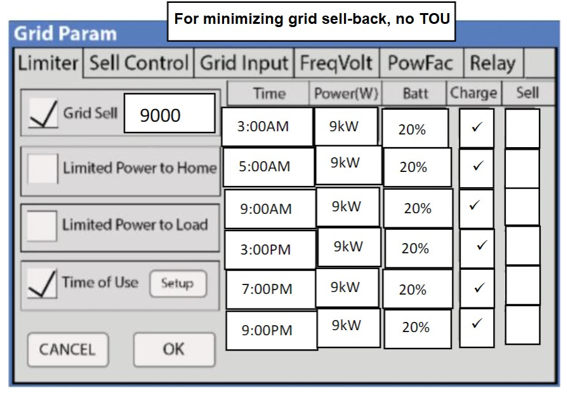
Note: Change the programming from Percentage to Voltage in the Battery setup menu. (Use Batt % Charge / Use Batt V charge)Here are more aggressive settings for minimizing sell-back to the grid (but allowing grid-sellback when the batteries are full).
Sol-Ark:
Share Sol-Ark Monitoring w/Fortress
Set up Wi-Fi with Sol-Ark Inverter using Sol-Ark’s My Sol-Ark App and have your site name and Wi-Fi dongle serial number handy to register the system online with Sol-Ark. After registering, use a laptop to log into MySolArk via a web browser at http://mysolark.com
Set up Wi-Fi with Sol-Ark Inverter using Sol-Ark’s My Sol-Ark App and have your site name and Wi-Fi dongle serial number handy to register the system online with Sol-Ark. After registering, use a laptop to log into MySolArk via a web browser at http://mysolark.com
Note: For certain circumstances, temporarily use the batteries in open-loop communication mode, please follow the following link for open-loop settings:
1. To program the inverter using the Sol-Ark inverter screen, go to battery setup menu:
2. Program the 'Batt' tab first. Enter the settings as shown below and tap on 'OK' in the bottom of the menu afterwards
Closed Loop Settings:
Confirm closed loop communication was established by going to the Home screen and selecting Li-BATT INFO
Open Loop Settings:
Note:
a) If closed loop communication is set up correctly, enabling 'BMS Lithium Batt 00' will adjust some values automatically. In this tab, those would be 'Batt Capacity' and 'Tempco'.
b) If the total charge/discharge current capacity of the batteries exceeds the inverter's capabilities, use the maximum current settings of the inverter.
For example, if you have four eForce batteries and one Sol-Ark 12K inverter, based on the size of the battery bank, 'Max A Charge' and ‘Max A discharge' should be 240A each. But Sol-Ark 12K can only carry 185A DC going to or coming from the battery. So, in this case, both 'Max A Charge' and 'Max A Discharge' would be set to 185A.
c) If recovering a deeply discharged battery, adjust the above charge amps to 10A.
3. Next, program the 'Charge' tab in the 'Battery Setup' menu:
Note:
a) The settings shown in the latter screenshot are the most conventional ones, hence, adjustments may be required (please see the table below).
The approach described in the note "2b" applies while programing this tab as well. Additionally, current set point (A) must not exceed generators' capability.
b) Larger generators are commonly tied into the grid side of the inverter rather than the dedicated generator input. Make check-marks and current adjustments accordingly. This fact was kept in mind while creating the last two rows of the table above.
c) Fortress batteries may be discharged to its full rated capacity without voiding the warranty, but for best overall experience and battery life, limit the discharge to 80% except for very rare occasions. Here is a list of our suggested triggers:
d) It is acceptable to raise the grid or generator start triggers to increase the reserve capacity of the system.
4. Program the Discharge tab:
Note:
a) At 'Shutdown' state of charge (battery bank charge percentage), inverter prevents battery from powering the loads. The battery(s) will renew/continue providing power to the loads when the battery bank is recharged to 'Restart' state of charge. 'Shutdown' and 'Restart' state of charge set-points can be increased to increase the "reserve capacity" of the system, but that will cause less battery charge usage. The correct shutdown level is specific to the project site.
b) Low battery is an alarm also specific to the project site, integrated with the Sol-Ark monitoring app. We suggest a 20% state of charge as a low battery alarm level. But it is a good idea to increase it if the 'Shutdown' and 'Restart' set- points are increased.
c) The battery empty voltage should not be lower than 44.8V. The last statement from the previous note applies to the 'Batt Empty V'. Usually this set-point does not exceed 45.5V.
Grid Setup / Time-of-Use
Time-of-use settings are specific to each end user but also important to having system behavior meeting customer expectations. system to behave as the end user wants it to behave. There are a few important things to know when programming Sol-Ark's time-of-use settings:
1) Checking the "charge" column boxes will force a grid charge to that battery.
2) Leaving the "charge" column boxes unchecked will act as a low battery cut-off.
3) Enabling "grid-sell" will allow the battery to sell back to the grid when it is otherwise 100% full.
4) Solar will charge the battery to 100% if there is enough sunlight available and all the loads are otherwise met.
5) Additional settings worth exploring in the Grid Setup Menu are the frequency ranges and grid profile settings useful for generator compatibility.
Back-up Only Customers:
Batteries work better and last longer if they are used, rather than staying 100% full. Our recommendation is to allow the battery to drop to 70% during the early morning hours and then have it go to 100% during the day. You do not need to enable a grid-charge for this functionality. You may want to increase the grid start % or voltage in the battery setup menu.
Time-of-use Customers:
1) To maintain solar tax credit compliance, you will want to prioritize battery charging in the hours before the time-of- use period so that the battery is 100% going into the time frame.
2) You may also want to enable a grid charge the hour before the time-of-use period to ensure the battery reaches 100%
3) You may not want to discharge the battery too aggressively. Sticking to no more than 9kW per eVault or 3.3kW per eFlex Max is optimal for maximizing battery life under time-of-use grid sell-back. Likewise, selling back at less than the full rated value of the inverter is healthy for inverter life. So for example, if you can identify that the battery and inverter will be fully utilized over the time of use rate period by discharging at 5kW rate instead of the full rated capacity of the inverter, it will extend battery life.
4) That said, the mantra is "use it or lose it" - it is more economically advantageous for the end user to use the battery when it is financially advantageous to do so, rather than to keep the battery at 100% always.
Bad Utility Buyback Rates aka "no net-metering" aka "bad net-metering":
Allow the battery to discharge to a 20% state-of-charge over night, so that it can absorb as much solar power as possible during the day rather than having that energy sold back to the grid. Staggering the step down percentages throughout the night so that the battery so that the battery hits 20% right in the early morning will mitigate the risk of power outage between sun up and sun down. Maintain the final 20% time-of-use step with a grid charge to make sure the battery does not go below 20% (which would trigger a full grid recharge at 15% per prior steps). During the day, it does not matter if you prioritize the grid or the battery first when recharging with solar power.
Note: Change the programming from Percentage to Voltage in the Battery setup menu. (Use Batt % Charge / Use Batt V charge)
Here are more aggressive settings for minimizing sell-back to the grid (but allowing grid-sellback when the batteries are full).
Related Articles
eForce Inverter Integration Guide (EcoVault)
Important Notice This Quick Guide does not exempt the installer or User from reading each product manual. Failure to do so may risk damaging both Fortress Power equipment and other manufacturers and void warranty. Connection Diagrams Connection ...eForce Inverter Integration Guide (Schneider)
Important Notice This Quick Guide does not exempt the installer or User from reading each product manual. Failure to do so may risk damaging both Fortress Power equipment and other manufacturers and void warranty. Connection Diagrams Connection ...eForce Installation Manual
1. Abbreviations 2. Change Log VERSION CHANGE DESCRIPTION EM-V1.0 EM-V1.2 1. Include Pinout definition EM-V1.3 2. Vertical installation with inverter instructions added EM-V1.4 1. Added dimensions for 2-3 battery vertical installation. 2. Changed ...eForce Inverter Integration Guide (Victron)
Important Notice This Quick Guide does not exempt the installer or User from reading each product manual. Failure to do so may risk damaging both Fortress Power equipment and other manufacturers and void warranty. Connection Diagrams Connection ...eForce Inverter Integration Guide (ENVY)
Important Notice This Quick Guide does not exempt the installer or User from reading each product manual. Failure to do so may risk damaging both Fortress Power equipment and other manufacturers and void warranty. Connection Diagrams Connection ...